
DeepDojo.AIPublished 2026-11-16中文
Is Running Claude Code in a Container Safe Enough?
The approval prompts keep coming, so you decide to drop the task into a Docker container and let Claude Code run free with --dangerously-skip-permissions. It's in a container, so the rest of your machine should be safe.
Now look at the launch command you always use:
docker run -v ~/projects:/work -e AWS_ACCESS_KEY_ID=... ...Your whole projects folder is mounted inside, and cloud credentials with production access are passed in as environment variables. With this setup, the container doesn't give you the protection you think it does. One delete inside the container and the code on your host disappears with it. If the credentials get read, your production resources in the cloud are exposed just the same.
"It's in a container, so it's safe" is a very common illusion. The more autonomy you give, and the fewer actions you approve one by one, the more you need to limit up front what the agent can reach. Skipping permission prompts, auto-approval, separate worktrees, and containers each handle a different job. No single one of them contains the blast radius of a mistake.
Before giving it more freedom, check the boundaries layer by layer:
- Files: work in a separate worktree or a temporary copy.
- Processes: run inside a container or a virtual machine.
- Data: mount only the directories you need, read-only where possible.
- Identity: don't pass in keys the task doesn't use.
- Network: if the task doesn't need the network, cut off both internet and internal network access.
- Recovery: Git, backups, snapshots, or an environment you can rebuild at any time.
01 What Each Way of Running Actually Controls
Manual permission mode, auto mode, --dangerously-skip-permissions, and an isolated environment are different kinds of control:
| Approach | What it changes | Fits |
|---|---|---|
| Manual mode | Asks before writing files, running commands, and similar actions, except ones already allowed | Everyday development, tasks whose boundaries are still shifting |
| Auto mode | A background classifier reviews each action and may approve reads, writes, or commands | Tasks with clear boundaries where you want fewer prompts |
--dangerously-skip-permissions | Maps to bypassPermissions and skips most permission prompts | Well-scoped tasks in a genuinely isolated environment |
| Container or VM | Limits the impact of a mistake at the system level | Long-running, highly autonomous, trial-and-error, or untrusted tasks |
Running plain claude doesn't necessarily put you in Manual mode. According to the Claude Code permission modes docs, recent versions start interactive terminal sessions in auto mode by default, so check the mode shown in the interface after launch.
Auto mode makes its decisions inside the permission system. Explicit deny rules block in every mode, and actions that match an ask rule are never approved automatically. bypassPermissions is what skips most prompts, and the docs state plainly that it belongs only in isolated environments such as containers and VMs.
One way to remember the split:
Auto mode: fewer approvals for low-risk actions
Manual approval: you keep the decision on irreversible actions
Isolated environment: limits the damage when a highly autonomous task goes wrong
Two more common misunderstandings. Skipping permission prompts doesn't create any sandbox by itself. A separate worktree keeps tasks' files apart, but processes can still reach everything on the host. Containers, VMs, restricted mounts, and network rules are what draw system-level access boundaries; snapshots and Git handle recovering changes that already happened.
02 The Same Command's Risk Depends on What It Touches
Start by placing common actions on a risk scale:
| Risk level | Common actions | How to handle |
|---|---|---|
| Low | ls, pwd, rg, cat, git status, reading logs, non-destructive tests | Can go to auto mode to cut routine prompts |
| Medium | Installing dependencies, formatting, generating files in bulk, long-running scripts | Check scope, inputs, and rollback; approve manually when needed |
| High | rm -rf, git reset --hard, force push, chmod 777, curl | sh, sudo, production data migrations, privileged containers | Keep the decision human and prefer an isolated environment |
The table is only a starting point. Real risk depends on what the command touches. The same rename script is easy to recover from when it runs on a temporary copy, and can cause real loss when it runs on your only copy of the work. In an important directory with no Git, backup, or other way back, raise the bar for approval no matter how routine the action looks.
The word "test" makes people relax. Before running npm run test:e2e, imagine that the end-to-end suite reads .env from the project root during setup, and its DATABASE_URL happens to point at a shared company test database, or even staging. The few lines in the suite that wipe tables will clear out data someone else is debugging in an instant.
Before approving a script, follow the config chain: does it connect to a throwaway local SQLite or in-memory database, or to a real outside service? Is this command testing unit logic in a sandbox, or sending requests over a real network?
Local Git operations can be irreversible too. Many people assume that anything goes on their own machine as long as nothing is pushed. But say Claude Code proposes git checkout -- <file> to clean up two non-compliant lines, and that file also holds dozens of lines of core logic you just wrote and never committed. Run that command and the uncommitted code is gone for good; reflog can't bring it back. Before anything discards, resets, or overwrites unstaged changes, ask: is there a copy of this anywhere else? If you're unsure, git stash first, then let it reset.
03 Ask Four Questions About Unfamiliar Commands
When a command is unfamiliar, have Claude Code explain it before you decide:
Which files, processes, or remote state does it affect?
Can the result be undone?
Is there a narrower alternative?
How do we recover if it fails?
The same cleanup command can run with looser limits in a throwaway container where it only deletes rebuildable files. If that container has a real project mounted, or carries cloud keys, the scope of impact changes. Tighten the mounts and credentials first, then decide whether it can run automatically.
04 Six Layers of Protection, Chosen per Task
High-risk tasks usually show one or more of these traits: long unattended runs, repeated unknown commands, access to many files, unfamiliar scripts, possible system configuration changes, or a need for --dangerously-skip-permissions.
Think about protection in six layers:
Files: separate worktree or temporary copy
Processes: container or VM
Data: minimal mounts, read-only where needed
Identity: no unrelated keys
Network: limit internet and internal network access
Recovery: Git, backups, snapshots, or a rebuildable environment
Say an untested migration script needs to change 2000 files. Set boundaries layer by layer:
- Files: copy to
/tmp/migrate-testand run on the copy. - Processes: use a container with resource limits.
- Data: mount only the directories needed, with read-only input separated from writable output.
- Identity: don't pass in cloud keys the task doesn't need.
- Network: turn off internet access if it isn't needed.
- Recovery: keep the original directory's Git state clean; the copy can be thrown away and rebuilt.
A failure on the copy still costs time and resources, but these boundaries reduce the impact on the original files and outside systems. Choose the protection the task needs. Whenever files will change, at least work out the scope and how you'd recover first.
05 Inside a Container, Check Five More Things
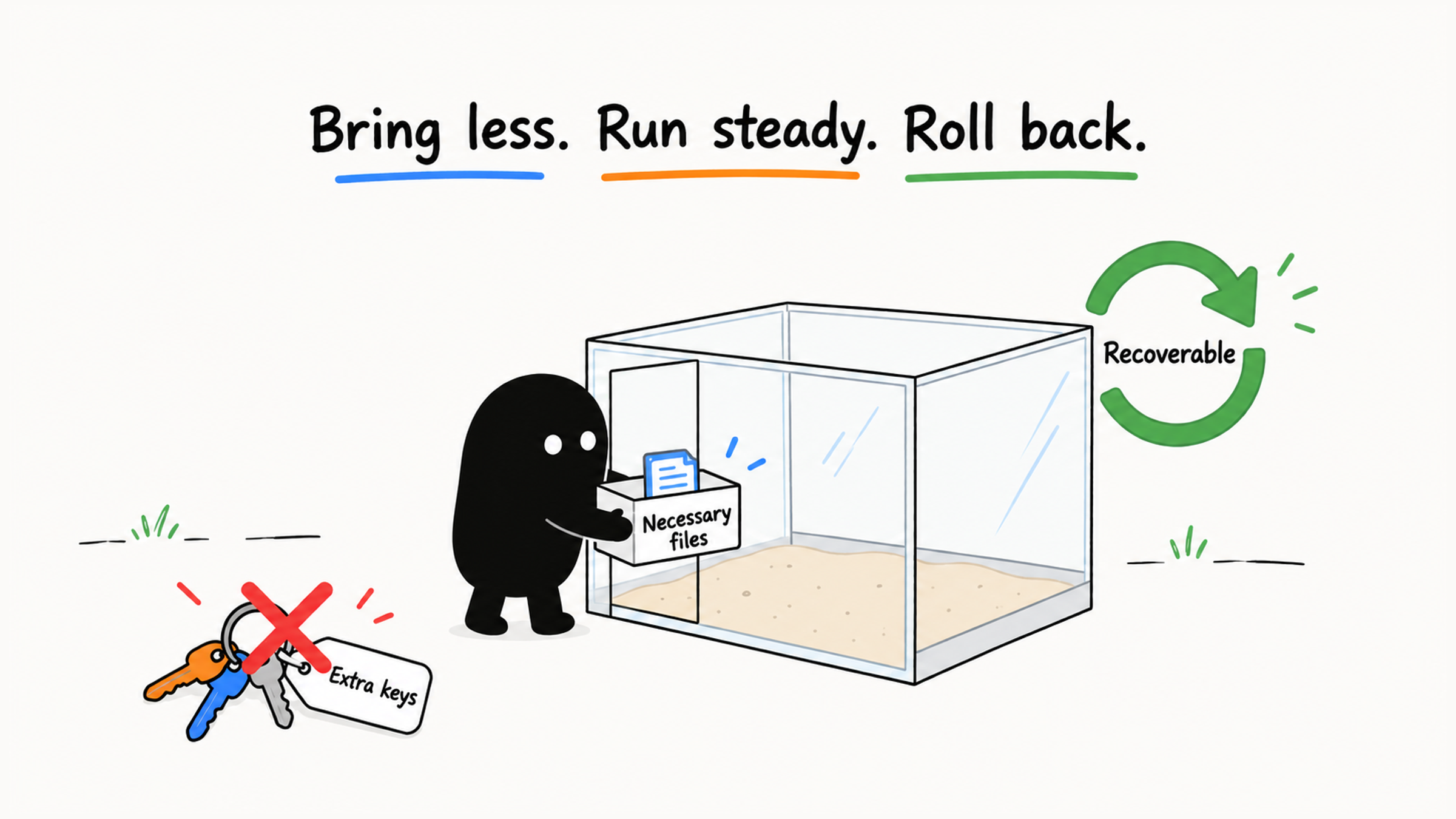
Back to that docker run. Putting the task in a container is only step one; the real defenses are in the configuration details. Docker's bind mount documentation is explicit: bind mounts give write access to host files by default, so processes in the container can create, modify, or even delete important files on the host. The readonly option prevents writes.
Check an isolated environment item by item:
- Which host directories are mounted, and are they read-only?
- Which keys and accounts are present in the environment?
- Can it reach the internal network, cloud resources, or private services?
- Will experiment output sync back into the main project?
- How do you destroy, rebuild, or restore a snapshot after a failure?
Loosen permissions and let tasks run automatically only after you've confirmed the container limits file, network, and credential access, and that you can destroy and rebuild it at any time.
Even with auto mode, Git, backups, and verification remain the basis for recovery. Where an important directory has no way to recover, raise the approval bar.
06 Put a Speed Bump on Dangerous Entry Points
To save keystrokes, some people alias the permission-skipping launch flag to a single letter, which turns production into a playground. The more destructive an entry point, the more deliberate it should feel to use.
--dangerously-skip-permissions belongs only in an isolated sandbox. Keep it as a separate, conspicuous alias so every use makes it clear you're entering a high-risk mode:
alias cs='claude --dangerously-skip-permissions'Your everyday entry point shouldn't skip permission checks. That keeps daily launches quick without disguising a high-risk mode as the default. One-step setup scripts found online often add aliases like this; a review checklist for Claude Code setup scripts shows how to review them before running.
When several tasks run in parallel, worktrees separate the files, but shared resources such as ports and test databases still need to be divided up; managing multiple Claude Code sessions at once has the details.
Take that opening container, drop the blanket mount of your projects folder in favor of read-only access to what's needed, remove the cloud credentials, cut the network, and it becomes a place where loosening permissions is reasonable. Before you give the agent more freedom, make sure files, network, and credentials are locked down and the environment can be destroyed and rebuilt at any time.